Set up a Hyper-V Virtual Switch using a NAT Network

A couple of months ago, I wrote a blog post about how you can create a new Hyper-V NAT Switch. Now, this worked fine in some early Windows 10 builds, but Microsoft removed the parameter for the NAT Switch in some Windows 10 Insider builds. You can find more about the Hyper-V Virtual Switches on Microsoft Docs. In the latest versions in the Windows 10 client operating system, Microsoft already includes a “Default Virtual Switch”, which allows you to use Hyper-V NAT Networking, without doing any configuration changes.
If you want to create an additional VM Switch which uses NAT on Windows 10, or you want to use the Hyper-V NAT VM Switch on Windows Server, you can follow this guide. The NAT VM Switch is especially heady if you use Nested Virtualization.
Requirements:
- Windows 10 and Windows Server 2016 build 14295 or later
- Enabled Hyper-V role
- PowerShell, since this setting is not available in the UI right now
Set up a Hyper-V NAT Switch
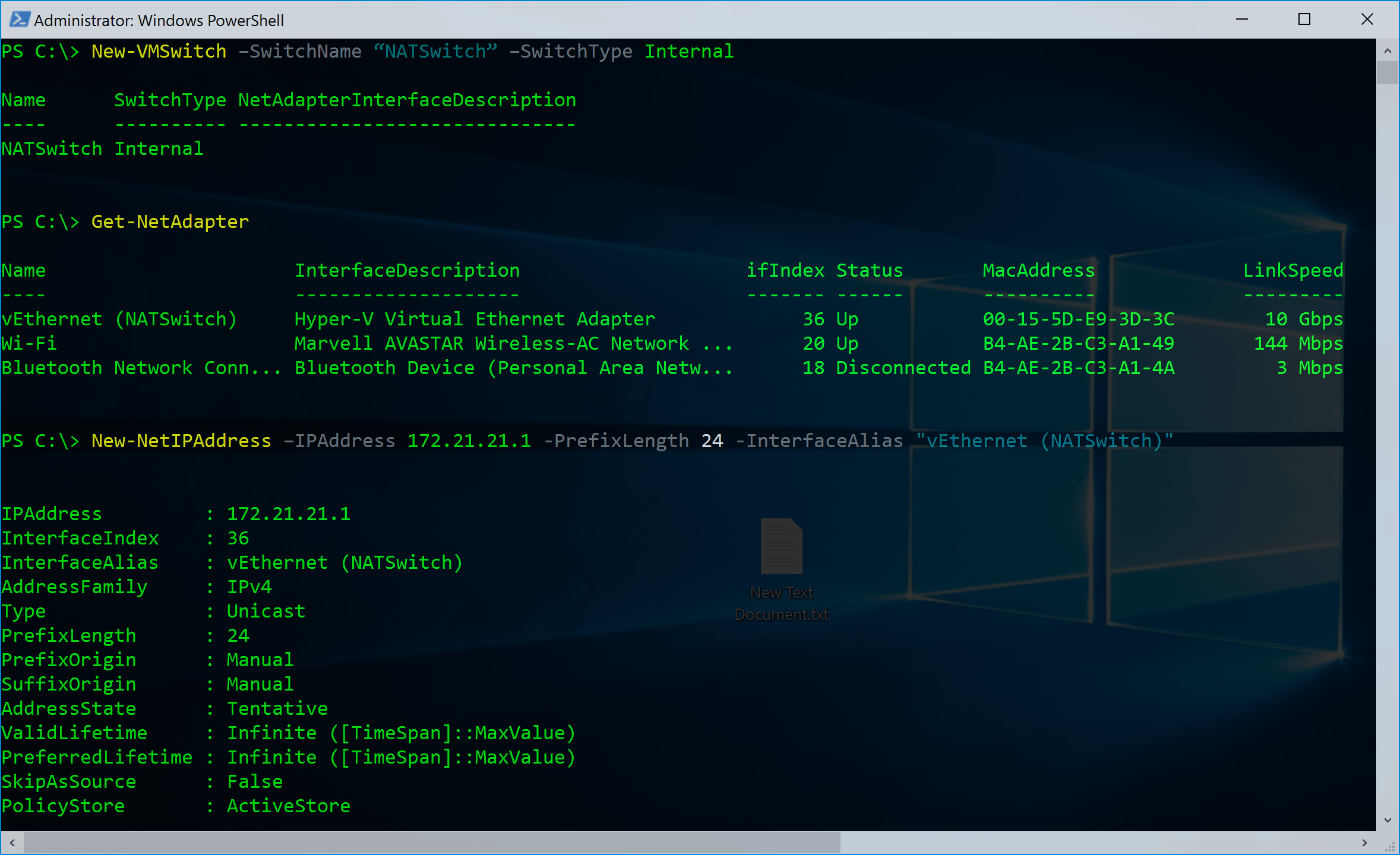
Create a new Hyper-V Virtual Switch
New-VMSwitch –SwitchName “NATSwitch” –SwitchType InternalConfigure the NAT Gateway IP Address
This configures the Virtual Network Adapter which was created while creating the Internal Virtual Hyper-V Switch.
New-NetIPAddress –IPAddress 172.21.21.1 -PrefixLength 24 -InterfaceAlias "vEthernet (NATSwitch)"
Now you can configure the NAT rule
New-NetNat –Name MyNATnetwork –InternalIPInterfaceAddressPrefix 172.21.21.0/24
After that, you have finally created your NAT network, and you can now use that network to connect your virtual machines and use IP addresses from 172.21.21.2-172.21.21.254.
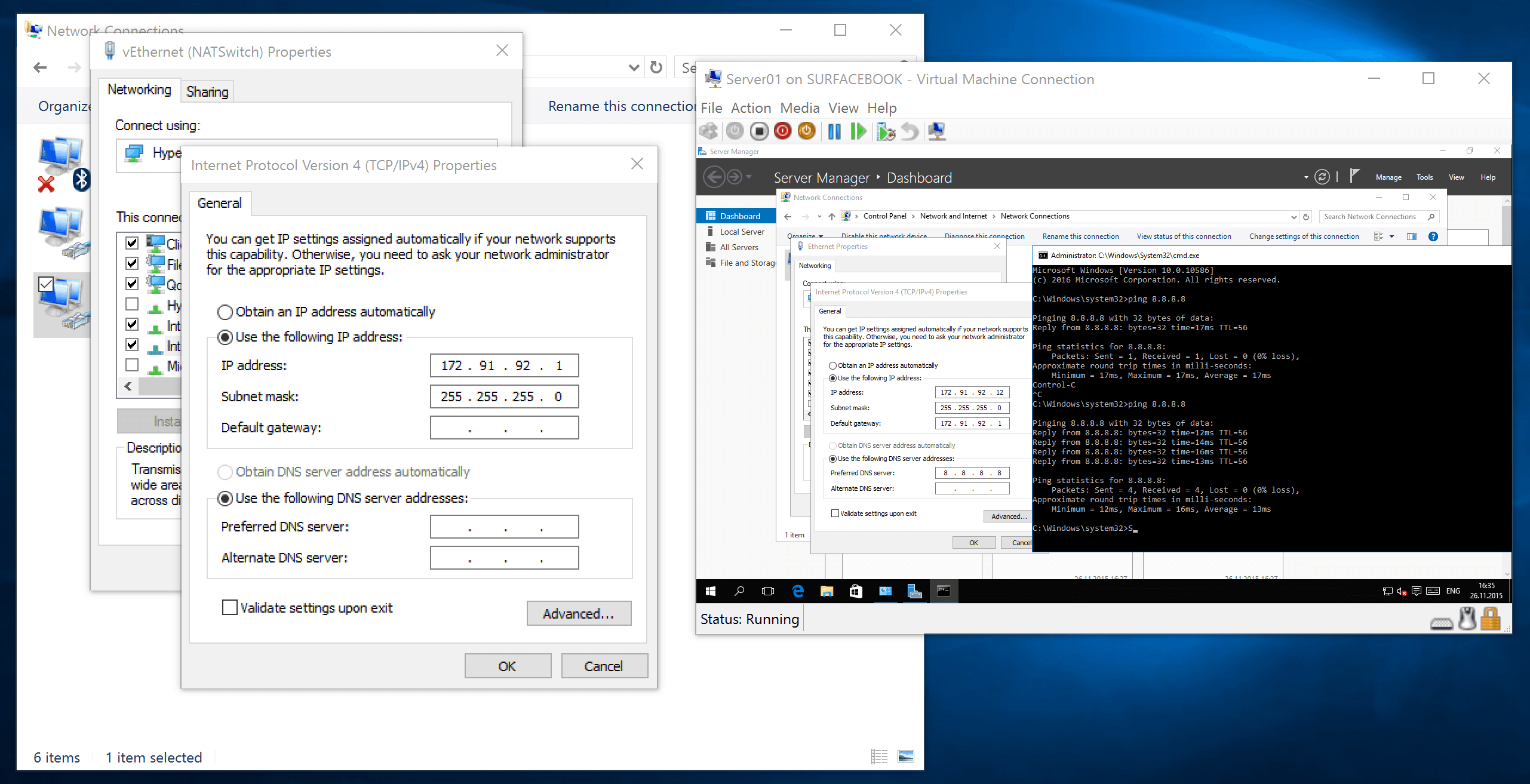
Create a new NAT forwarding
To forward specific ports from the Host to the guest VMs, you can use the following commands.
This example creates a mapping between port 80 of the host to port 80 of a Virtual Machine with an IP address of 172.21.21.2.
Add-NetNatStaticMapping -NatName "VMSwitchNat" -Protocol TCP -ExternalIPAddress 0.0.0.0 -InternalIPAddress 172.21.21.2 -InternalPort 80 -ExternalPort 80
This example creates a mapping between port 82 of the Virtual Machine host to port 80 of a Virtual Machine with an IP address of 172.21.21.3.
Add-NetNatStaticMapping -NatName "VMSwitchNat" -Protocol TCP -ExternalIPAddress 0.0.0.0 -InternalIPAddress 172.16.0.3 -InternalPort 80 -ExternalPort 82

No comments:
Post a Comment