Install Intel NUC Windows Server 2019 Network Adapter Driver

As you know, I am using an Intel NUC as my Windows Server lab machine, where I run Windows Server 2019 and Hyper-V on. Many people asked me about how you can install the Intel NUC Windows Server 2019 Network Adapter driver because there are no Windows Server 2019 drivers for it. My blog reader, Michael Williams, shared how you can install the Windows Server 2019 Network adapter drivers on the Intel NUC 8th generation.
Here are the simple steps you can follow to install the Intel NUC Windows Server 2019 Network Adapter Driver:
- Download the latest PROWinx64.exe for Windows Server 2019 from Intel including drivers for the Intel® Ethernet Connection I219-V
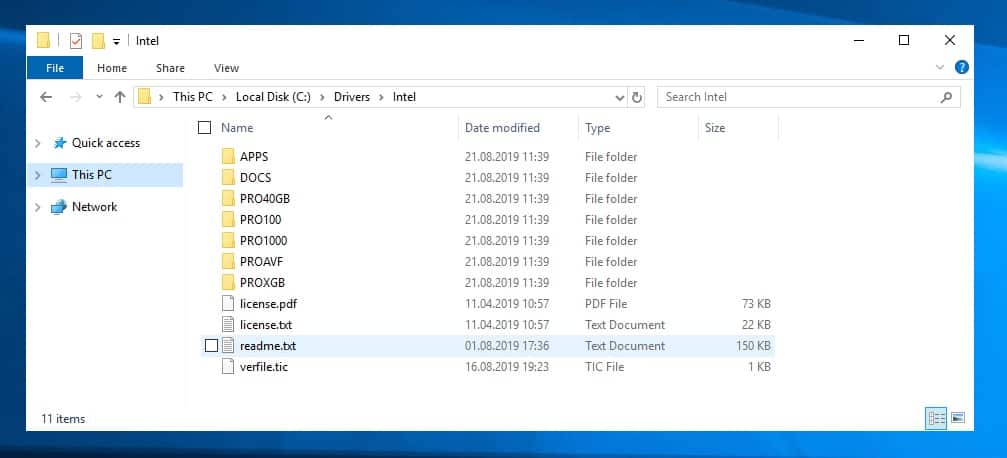
- To manually install the network drivers, extract PROWinx64.exe to a temporary folder – in this example to the C:\Drivers\Intel\ folder. Extracting the .exe file manually requires an extraction utility like WinRAR or others. You can also run the .exe and it will self-extract files to the %userprofile%\AppData\Local\Temp\RarSFX0 directory. This directory is temporary and will be deleted when the .exe terminates.
- The driver for the Intel I219-V network adapter can be found in the C:\Drivers\Intel\PRO1000\Winx64\NDIS68.
Extracted Network Drivers for Windows Server 2019 – Intel NUC PROWinx64
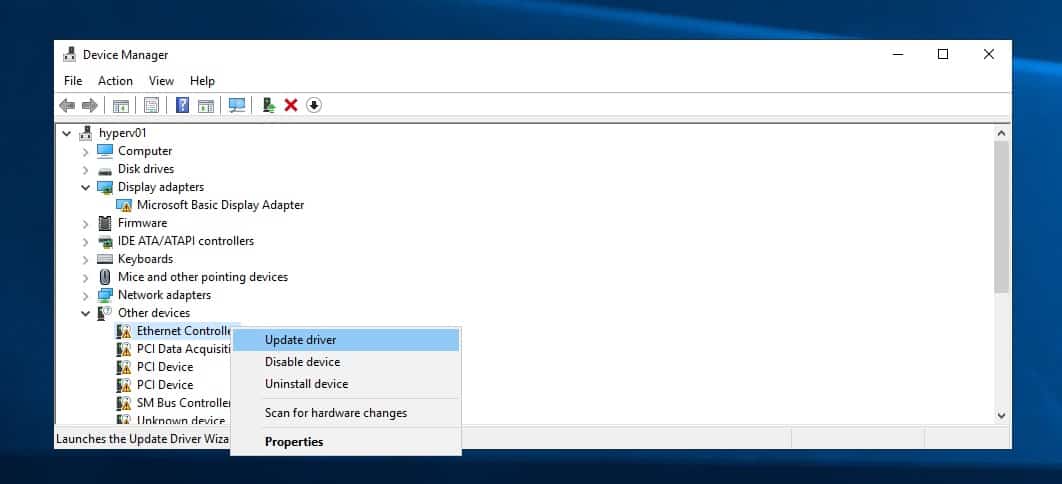
- Open Device Manager right click on Ethernet Controller and select Update Driver.
Device Manager Update Driver Ethernet Controller – Intel NUC Windows Server 2019 Driver
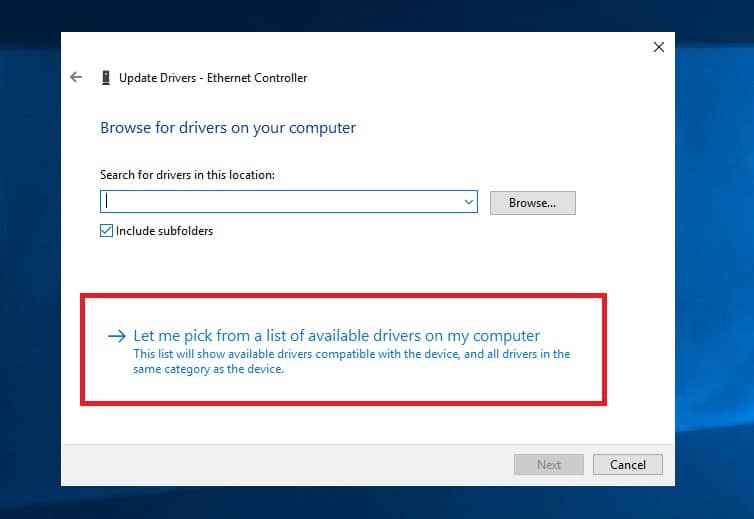
- Select “Browse on my computer for driver software”, and select “Let me pick from a list of available drivers on my computer”, now you can select Network Adapter.
Update Driver
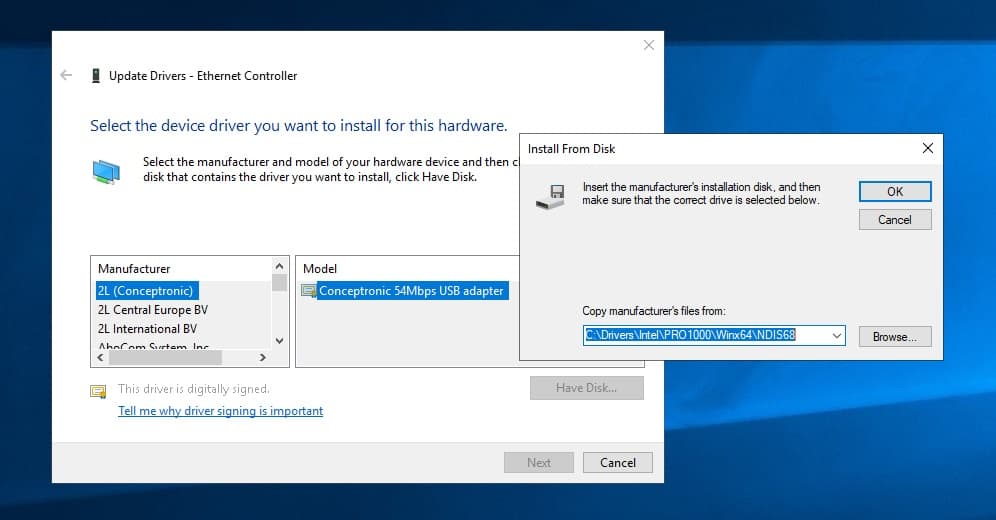
- Click on “Have Disk…” enter the following path “C:\Drivers\Intel\PRO1000\Winx64\NDIS68.”
Driver Location
- Now select Intel Ethernet Connection I219-LM (The I219-V version is not shown)
Select the Intel Ethernet Connection I219-LM
- And you are done.


No comments:
Post a Comment